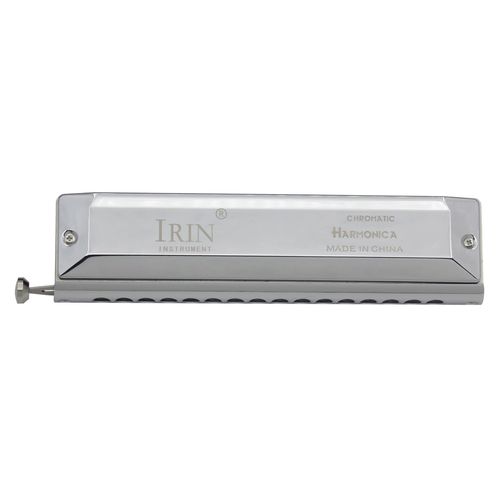
How to Record Harmonica at Home: A Complete Guide to Better Sound Quality
Recording harmonica at home is easier than many musicians think. You do not need an expensive studio, professional recording equipment, or years of audio engineering experience to capture a clear and expressive harmonica performance.
With the right recording environment, microphone placement, and a few simple techniques, you can record harmonica using a smartphone, a USB microphone, or a computer-based audio setup.
This guide explains how to record harmonica at home, how to choose the right recording method, how to improve sound quality, and how to fix common problems such as background noise, harsh tones, distortion, and excessive room echo.
Whether you are a beginner recording your first melody or an experienced player preparing music for social media, these practical steps will help you create cleaner and more natural-sounding recordings.
Quick Answer: What Is the Best Way to Record Harmonica at Home?
The best recording method depends on your budget, experience, and musical goals.
For beginners: Use a smartphone with a built-in voice recorder or a suitable recording app in a quiet room.
For better sound quality: Use a USB microphone connected to a computer.
For advanced recording: Use an XLR microphone, an audio interface, and recording software.
For amplified blues harmonica: Use a suitable harmonica microphone and amplifier, then record the amplifier with a microphone or a compatible direct recording setup.
Regardless of your equipment, start by reducing background noise, positioning the microphone carefully, and recording at a healthy level without clipping.
1. Prepare Your Room Before Recording Harmonica
Your recording environment can affect the final sound as much as your microphone does. A sensitive microphone may capture unwanted reflections, computer fans, traffic, air conditioning, and other sounds that you barely notice while playing.
Before buying new equipment, improve the space you already have.
Choose a Quiet Recording Location
Choose a room away from busy roads, televisions, loud appliances, and other sources of noise. Turn off unnecessary fans or air conditioning if it is practical to do so.
Listen to the room before recording. If you hear a constant hum, buzzing, or intermittent noise, identify the source and reduce it where possible.
You do not need a completely soundproof studio. The goal is to create a reasonably quiet environment with minimal distracting reflections.
Reduce Echo and Room Reflections
Hard surfaces such as bare walls, windows, and wooden floors can reflect sound. These reflections may make your harmonica recording sound distant, hollow, or unclear.
Try the following adjustments:
Record in a room with curtains, rugs, upholstered furniture, or other soft furnishings.
Avoid positioning yourself directly in the middle of a large, empty room.
Experiment with different recording positions, listening for the clearest and most natural sound.
Keep the microphone away from reflective corners when possible.
Use a blanket or other soft material to reduce nearby reflections, while keeping your equipment ventilated and safe.
Soft furnishings can reduce some reflections, but they will not provide complete sound isolation. If outside noise is the main problem, recording at a quieter time may help more than adding blankets.
Create a Consistent Recording Position
Once you find a suitable location, mark where you stand or sit and where you place the microphone.
A consistent position makes it easier to record multiple takes with similar tone and volume. This is especially useful when recording several harmonica parts for one song.
2. Choose the Right Equipment for Harmonica Recording
You can achieve useful results with several different recording setups. Choose the simplest one that meets your needs.
Option A: Record Harmonica with a Smartphone
A smartphone is a convenient starting point for beginners, practice recordings, and quick musical ideas.
What you need:
A smartphone with a recording app
A quiet room
A stable phone stand or secure surface
Optional: an external microphone compatible with your phone
Advantages:
Low initial cost
Easy to carry
Quick setup
Convenient for reviewing practice sessions and sharing recordings
Limitations:
Built-in microphones may capture handling noise and room reflections.
Automatic gain control or noise processing may alter the sound.
Some phones may struggle with very loud or close harmonica recordings.
For your first recording, use the phone's standard recording app. If your phone supports manual recording controls or an external microphone, you can experiment with those options later.
Option B: Use a USB Microphone
A USB microphone connects directly to a compatible computer and, in some cases, a phone or tablet with the appropriate connection and power support.
It is a practical choice for musicians who want to record lessons, demos, online performances, or harmonica tracks without purchasing a separate audio interface.
Before buying a microphone, check its compatibility with your operating system, device connections, and recording software.
Option C: Use an XLR Microphone and Audio Interface
An XLR microphone connected to an audio interface offers greater flexibility for musicians who want to control input gain, monitor their sound, and record additional instruments.
A typical setup includes:
An XLR microphone
An audio interface
An XLR cable
A computer
Digital audio workstation (DAW) software
Headphones for monitoring
This setup is useful for more advanced projects, including harmonica solos, acoustic arrangements, and multitrack recordings.
Remember that a more expensive microphone does not automatically produce a better recording. Microphone suitability, room acoustics, placement, and performance all matter.
Option D: Record Amplified Harmonica
Amplified blues harmonica often uses a different setup from clean acoustic harmonica recording.
You can place a suitable microphone in front of the amplifier's speaker or use a compatible direct output or recording connection if your amplifier provides one.
Start with conservative volume and gain settings. High amplifier volume and excessive microphone gain can create distortion or feedback.
If you want a clean, natural acoustic tone, begin with an unamplified setup before experimenting with amplified blues tones.
3. How to Position a Microphone for Harmonica Recording
Microphone placement has a major effect on tonal balance, loudness, breath noise, and room sound.
There is no single distance that works for every microphone or playing style. Use the following positions as starting points, then record short tests.
For Smartphone Recording
Place your phone on a stable stand rather than holding it while playing.
Start approximately 12–24 inches (30–60 cm) from your mouth and harmonica. Aim the microphone toward the playing area without placing it directly in the path of strong breath noise.
Record a short passage and listen back. If the harmonica sounds too quiet, move the phone closer in small increments. If the sound is harsh, boomy, or overloaded, try moving it farther away or changing its angle.
For USB or Studio Microphones
For a first test, position the microphone approximately 8–16 inches (20–40 cm) from the harmonica and mouth area.
Adjust the distance according to the microphone's pickup pattern, sensitivity, and your playing volume.
Try these adjustments:
Too much breath noise: Angle the microphone slightly off-axis.
Too much room sound: Move closer while maintaining a natural tone.
Harsh or boomy sound: Change the distance or angle and record another test.
Uneven volume: Maintain a consistent playing position and adjust input gain if necessary.
A pop filter or suitable windscreen may help with certain microphones, but it is not a universal solution for harmonica breath noise.
For Amplified Harmonica
If you are recording an amplifier, start by positioning the microphone a short distance from the speaker grille, slightly off-center if the sound is too bright.
The center of a speaker often sounds brighter than areas closer to its edge, although the result depends on the speaker and microphone.
Move the microphone gradually while recording short samples. Small changes can make a noticeable difference.
4. How to Record Harmonica on a Computer
A computer-based setup gives you more control over recording levels, editing, and exporting.
Follow these steps to create your first recording.
Step 1: Connect Your Recording Equipment
Connect your USB microphone directly to a compatible computer, or connect your XLR microphone to an audio interface and then connect the interface to your computer.
If you use an audio interface, select the correct input and connect headphones for monitoring.
Step 2: Open Your Recording Software
Choose a recording application or DAW that supports your operating system and equipment.
Create a new audio project and select your microphone or audio interface as the input device.
If your software offers several audio formats, 24-bit recording at 44.1 kHz or 48 kHz is a practical starting point for many music projects.
Step 3: Set the Input Gain
Play the loudest section of your planned performance while watching the input meter.
Adjust the gain so that the loudest peaks remain comfortably below 0 dBFS. Peaks around -12 to -6 dBFS can provide useful headroom for many home recording situations.
Avoid recording too close to digital clipping. Once the input signal clips, lowering the volume afterward will not fully restore the distorted waveform.
Step 4: Record a Test Take
Record 10–20 seconds of playing before attempting a complete performance.
Include both soft and loud notes. Listen through headphones and check for:
Distortion
Excessive breath noise
Background hum
Room echo
Uneven volume
Unwanted clicks or handling noise
Fix obvious problems before recording the full piece.
Step 5: Record Multiple Takes
Record two or three takes of the same passage if time allows.
Do not change the microphone position or gain between takes unless you intentionally want to test a different sound.
Listen to each take and select the one with the clearest tone, most consistent timing, and best musical expression.
5. How to Improve Harmonica Recording Quality
Good sound quality comes from a combination of performance, recording technique, and restrained editing.
Maintain Consistent Breath Control
Sudden changes in breath pressure can create noticeable differences in volume and tone.
Before recording, play the passage slowly and pay attention to the transition between notes. Keep your breathing relaxed and avoid forcing every note to the same intensity.
A natural performance usually sounds better than one in which every note is pushed to maximum volume.
Control Handling Noise
If you move your hands around the harmonica, adjust a stand, or touch a microphone cable during recording, those movements may produce unwanted sounds.
Secure the microphone stand and cables. Practice hand movements before recording, particularly if your performance uses hand-cupping techniques.
If you are recording a handheld microphone, make sure the microphone is suitable for the way you intend to hold and play it.
Monitor with Headphones
Headphones help you hear details that may be difficult to notice while playing.
Listen for clipping, noise, timing problems, and changes in tone. If you use speakers to monitor your recording, sound from the speakers may leak into the microphone.
For this reason, closed-back headphones are often useful during recording.
Apply Audio Processing Carefully
After recording, you may use editing tools to improve the result.
Noise reduction: Reduce steady background noise when necessary, but avoid aggressive processing that creates metallic or watery artifacts.
Equalization (EQ): Make small adjustments if the recording sounds overly boomy, dull, or harsh.
Compression: Control large differences in volume when needed.
Reverb: Add a small amount if the recording feels too dry, but preserve the harmonica's natural attack and clarity.
Volume adjustment: Set the final level appropriately for your intended platform.
Do not apply every effect automatically. Listen to the unprocessed recording first and make changes only when they solve an identifiable problem.
6. Common Harmonica Recording Problems and How to Fix Them
Problem 1: The Recording Sounds Distorted
Possible causes: Excessive input gain, an overloaded microphone input, or an amplifier set too loud.
How to fix it:
Reduce the input gain.
Check whether the microphone or interface has a pad setting.
Move the microphone farther away if close placement is overloading the input.
Lower the amplifier volume if you are recording amplified harmonica.
Record a new take with adequate headroom.
Problem 2: The Recording Contains Too Much Background Noise
Possible causes: Fans, computer noise, traffic, electrical interference, or a high recording gain.
How to fix it:
Identify and reduce the source of the noise.
Move the microphone closer if doing so improves the ratio of direct sound to room noise.
Check cables and connections.
Test a different power outlet or recording position if electrical interference is suspected.
Apply gentle noise reduction only after addressing the source.
Problem 3: The Harmonica Sounds Thin or Harsh
Possible causes: Microphone position, excessive high-frequency emphasis, room reflections, or an unsuitable recording setup.
How to fix it:
Experiment with a slightly different microphone angle.
Try moving the microphone closer or farther away.
Listen to a recording made in another part of the room.
Check whether EQ is exaggerating unpleasant frequencies.
Compare the processed recording with the original.
Problem 4: The Recording Sounds Distant or Echoey
Possible causes: Excessive microphone distance, strong room reflections, or a large untreated space.
How to fix it:
Record in a smaller, quieter room with soft furnishings.
Move the microphone closer while checking tonal balance.
Avoid placing the microphone near reflective corners.
Reduce unnecessary reverb during editing.
Problem 5: The Volume Changes Too Much Between Notes
Possible causes: Inconsistent playing dynamics, changing microphone distance, or automatic gain control.
How to fix it:
Practice the passage at a slower tempo.
Maintain a consistent distance from the microphone.
Check whether your recording app automatically adjusts input levels.
Use manual gain controls if available.
Apply gentle compression during editing if the performance still needs more consistent levels.
7. A Simple Harmonica Recording Workflow for Beginners
If you are new to home recording, follow this checklist each time you record.
Prepare the room. Choose a quiet location and reduce unnecessary reflections.
Set up your equipment. Use a smartphone, USB microphone, or audio interface.
Position the microphone. Start with a moderate distance and test different angles.
Set the recording level. Avoid clipping during the loudest notes.
Record a short sample. Listen for noise, distortion, and room echo.
Record the complete performance. Maintain a consistent position and relaxed playing technique.
Review the take. Listen through headphones and identify any problems.
Edit conservatively. Remove unnecessary silence, adjust levels, and apply effects only when useful.
Export and check. Listen to the exported file to make sure it sounds as expected.
For a simple solo recording, this workflow is usually enough to get started without building a professional studio.
8. Frequently Asked Questions About Recording Harmonica
Can I record harmonica with my phone?
Yes. A smartphone can capture useful practice recordings, demos, and social media performances. Use a quiet room, keep the phone stable, and test the recording level before playing a complete piece.
What is the best microphone for recording harmonica?
The best microphone depends on the sound you want. A USB microphone is convenient for home recording, while an XLR microphone and audio interface offer more control. For amplified blues harmonica, a suitable harmonica microphone may be preferable. Test the microphone in your actual recording environment before deciding whether to upgrade.
How far should a microphone be from a harmonica?
There is no universal distance. As a starting point, try 8–16 inches (20–40 cm) for a USB or studio microphone, or 12–24 inches (30–60 cm) for a smartphone. Adjust the position based on the microphone, room, and playing style.
Why does my harmonica sound different in recordings?
Your ears hear the instrument directly as well as reflections from the room. A microphone captures sound from a specific position and may emphasize breath noise, room reflections, or certain frequencies. Microphone placement and recording conditions can therefore change the sound you hear.
Do I need an audio interface to record harmonica?
No. You can start with a smartphone or USB microphone. An audio interface is useful when you want to connect XLR microphones, control input gain, monitor through headphones, or record several audio sources.
Should I add reverb to harmonica recordings?
Reverb is optional. A small amount may add a sense of space, but too much can make the notes sound distant or unclear. Start with a dry recording and add reverb only if it improves the musical result.
How can I reduce breath noise when recording harmonica?
Try angling the microphone slightly away from the direct airflow, adjusting the distance, and checking whether the microphone is overloaded. Do not eliminate all breath-related sound automatically; some of it is part of the instrument's natural character.
What audio format should I use for recording harmonica?
For music production, WAV at 24-bit and 44.1 kHz or 48 kHz is a practical starting point when supported by your equipment and software. For quick sharing, a high-quality compressed format may be more convenient. Keep an uncompressed master when possible.
Final Thoughts
Recording harmonica at home is a process of learning how your instrument, microphone, and room work together.
Start with the equipment you already have. Improve the recording environment, experiment with microphone placement, set appropriate input levels, and listen critically to short test recordings before committing to a full performance.
You do not need to solve every technical detail at once. Small improvements in setup and consistency can make a meaningful difference to your final sound.
Whether you are recording practice sessions, sharing melodies online, or producing a more polished musical performance, a simple and repeatable workflow will help you capture the expressive character of your harmonica.
Explore more harmonica learning resources from NeonHarp to continue developing your playing technique, musical understanding, and recording skills.